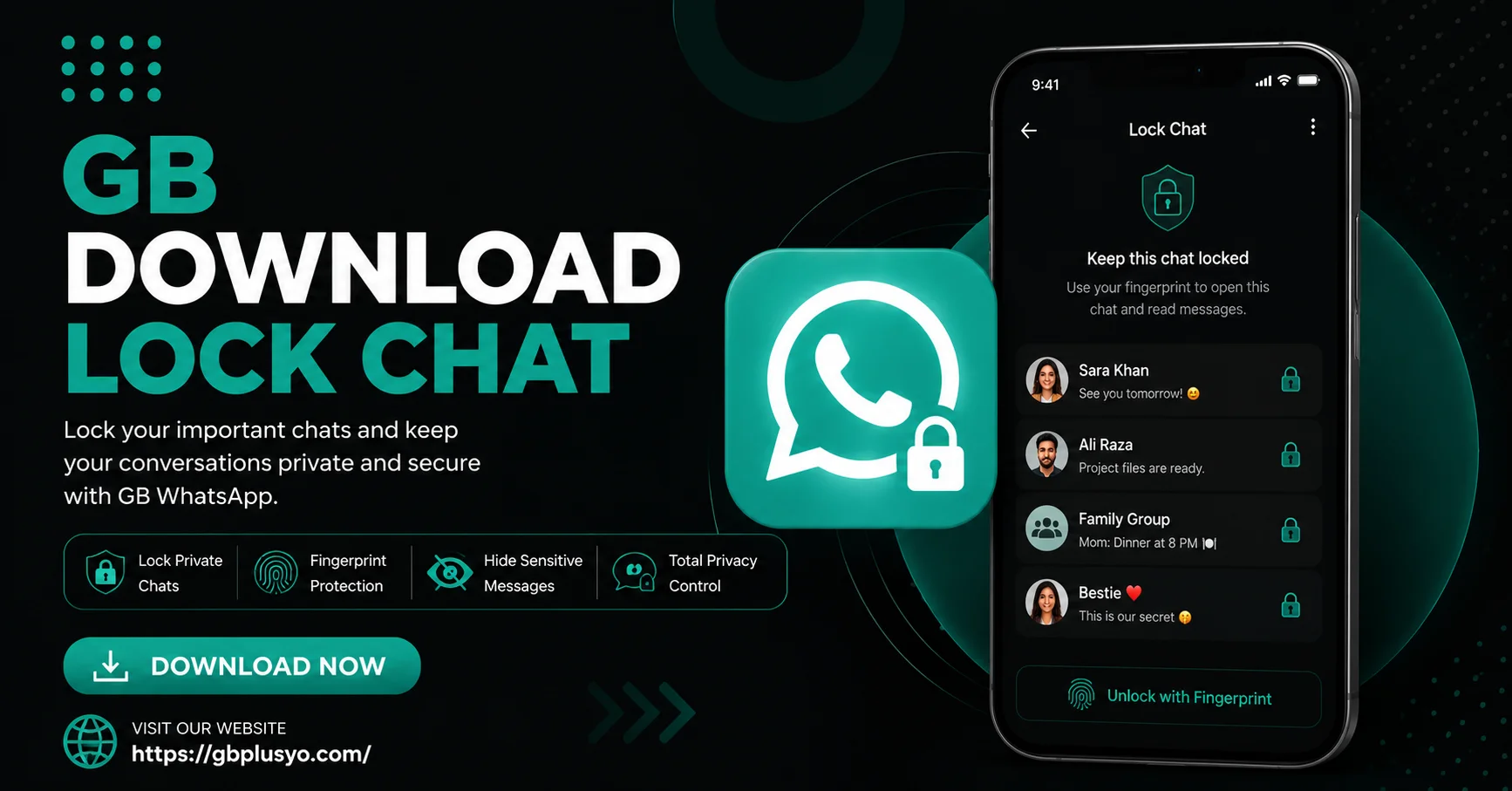
GB WhatsApp lock chat is a feature that turns your messenger into a private vault. The official WhatsApp offers a basic app lock, but it protects the entire app with a single password. GB WhatsApp goes much further by letting you lock individual conversations with a unique PIN, password, or fingerprint. If you share your phone with family, friends, or colleagues, this feature is an absolute game changer.
This 2026 guide explains every lock chat option, walks you through the setup, and shares expert tips to keep your private conversations truly private.
Why Lock Chat Is Essential in 2026
Phones have become the central hub for personal, financial, and professional communication. Sharing a phone to show a photo, play a game, or let a child watch a video is normal. But the moment you hand over an unlocked phone, every private chat becomes exposed.
GB WhatsApp lock chat solves this elegantly. You can lock specific conversations so that even if someone opens GB WhatsApp, those chats remain sealed behind a second layer of security. The contact name may show in the chat list, but the messages stay hidden until the correct password is entered.
Lock Chat Methods Available in GB WhatsApp
GB WhatsApp supports several locking methods so you can pick the one that matches your phone and comfort level.
| Method | Best For |
|---|---|
| PIN | Quick and easy to remember |
| Password | Strong alphanumeric protection |
| Pattern | Visual and fast to unlock |
| Fingerprint | Maximum convenience |
| Face Unlock | Modern phones with face recognition |
Most users combine two methods, for example a password for daily use and a fingerprint for emergency unlocks.
How to Lock a Single Chat in GB WhatsApp
The setup is quick and only takes a few taps.
Step 1: Open the Chat You Want to Lock
Launch GB WhatsApp and open the conversation you want to protect.
Step 2: Tap the Chat Name
Tap on the contact name or group name at the top of the screen to open the chat info page.
Step 3: Scroll Down to Lock Chat
Scroll through the options until you find Lock Chat. Tap it.
Step 4: Choose Your Lock Method
Select PIN, password, pattern, or fingerprint. Set the credentials and confirm.
Step 5: Enable Auto Lock Timer
Choose how long GB WhatsApp should wait before auto locking the chat again. Common values are immediately, one minute, five minutes, or fifteen minutes.
How to Lock Multiple Chats at Once
If you have a long list of sensitive conversations, locking them one by one is tedious. GB WhatsApp includes a bulk lock tool.
Open GB Settings, then Privacy and Security, then Lock Chats. Tap Select Multiple. Choose every chat you want to protect. Pick a lock method. Confirm. All selected chats will now require the same password to open.
Difference Between Lock Chat and Hide Chat
Lock chat keeps the conversation visible in your main list but blocks the content behind a password. Hide chat removes the conversation from the main list entirely. Many users combine both features for layered protection. Hide the chat for invisibility and lock the chat for content security.
Auto Lock Options Explained
Auto lock is the timer that triggers the lock screen when you leave a conversation. Choosing the right timer is important for daily comfort.
Immediate lock is best for maximum security, especially on shared phones. One minute works well for personal phones because it gives you a small window to switch between chats without re entering your password. Five or fifteen minute timers are ideal for users who read multiple chats in a single sitting.
Best Practices for Choosing a Lock Password
A weak password makes the lock feature useless. Follow these guidelines to choose something strong.
- Use at least six characters with a mix of letters and numbers
- Avoid obvious combinations like 0000, 1234, or your birth year
- Do not reuse the same password as your phone unlock code
- Change the password every two to three months
- Store backup passwords in a trusted password manager
These habits ensure that even a determined snoop cannot guess your way in.
Fingerprint Lock Tips
Fingerprint unlock is the fastest and most convenient method, but it has a few quirks worth knowing.
- Register at least two fingerprints in case one finger is wet or injured
- Always set a backup PIN in case the fingerprint sensor fails
- Clean your fingerprint sensor regularly for accurate reads
- Avoid using fingerprint unlock for highly confidential business chats on shared phones
Troubleshooting Lock Chat Issues
If lock chat stops working or refuses to accept your password, try these fixes.
Clear GB WhatsApp cache from your phone settings. Update to the latest version from https://gbplusyo.com/. Reboot your phone to refresh biometric sensors. If fingerprint unlock fails, switch to PIN temporarily and test the sensor in another app. If everything fails, uninstall and reinstall GB WhatsApp after backing up your chats.
Real Life Scenarios Where Lock Chat Saves the Day
Imagine handing your phone to a coworker to show a presentation, only to realize they can see every personal chat on your home screen. Lock chat prevents that awkward moment instantly.
Scenario one, a family member borrows your phone to make a quick call. With lock chat, your private conversations stay sealed. Scenario two, you lend your phone to a child for a game. Locked chats remain invisible behind the password wall. Scenario three, you are showing photos to a friend and they accidentally open a sensitive chat. Lock chat requires the password, so the content stays private.
These everyday situations prove that lock chat is not just a fancy toggle. It is a real shield for your daily life.
Advanced Lock Chat Settings Worth Exploring
Once you master the basics, GB WhatsApp offers several advanced settings that make the feature even more powerful.
- Enable lock chat on archived conversations to protect old memories
- Hide notification content for locked chats so previews stay private
- Set separate auto lock timers for personal and group chats
- Use a different lock theme so the unlock screen matches your style
- Enable shake to lock for instant protection when handing off your phone
These small but powerful settings transform a simple lock into a personalized security system.
What Happens If You Forget Your Lock Password
GB WhatsApp does not store your password in plain text. If you forget it, you cannot recover the locked chats. The only option is to uninstall the app, reinstall the latest version, and lose access to the locked content. This is why writing down a backup password somewhere safe is so important.
Final Thoughts
GB WhatsApp lock chat is one of the most underrated features of the entire app. It gives you complete control over who can see your private conversations, even when your phone is in someone else hands. Combined with hide chat, anti revoke, and selective blue tick control, it creates a privacy experience that no other messenger can match. For the latest version with stable lock chat, smart auto lock timers, and reliable fingerprint support, download GB WhatsApp from https://gbplusyo.com/ today.
Frequently Asked Questions
Can I lock a group chat in GB WhatsApp? Yes, both individual and group chats can be locked using the same workflow.
Does lock chat work with fingerprint sensors? Yes, GB WhatsApp supports fingerprint unlock on all modern Android phones with a registered fingerprint.
What happens if I forget my lock chat password? You will need to reinstall GB WhatsApp. Locked chats cannot be recovered without the password.
Can I use a different password for each chat? GB WhatsApp uses one master password for all locked chats. Different passwords per chat are not supported.
Where can I get the latest GB WhatsApp with reliable lock chat? Visit https://gbplusyo.com/ to download the most recent APK with the smoothest lock chat experience.